User Interface Overview
To ensure the effective usage and management of the Attributor tool, the Developers at Open Spatial have created a simple yet effective user interface in which the tool runs. A very simple dialog is displayed, for user input by means of free-text and customization drop-down lists. The user had the added advantage to also display descriptions and values as either code values, unabridged user-friendly descriptions or both.
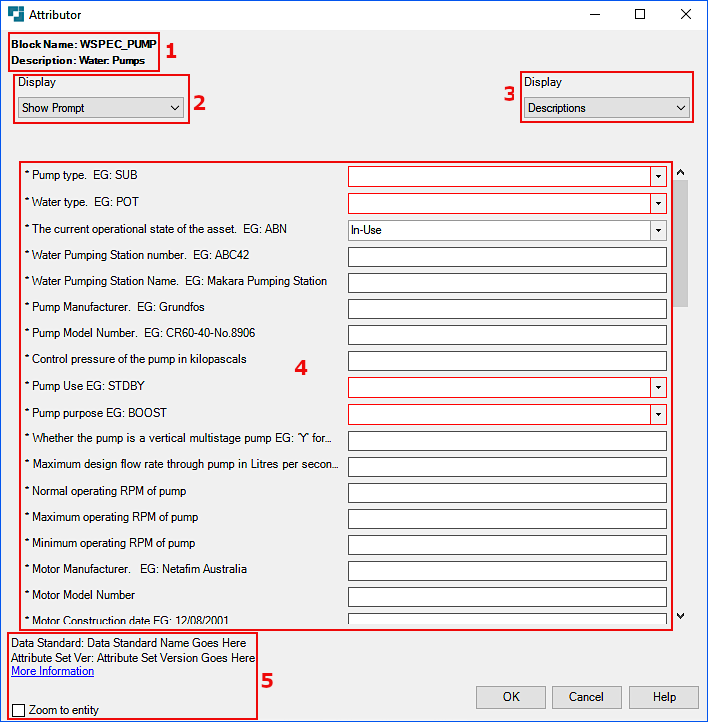
Attributor user interface dialog composition is separated into five sections. A comprehensive breakdown can be found below:
Section 1: Block and Description Information
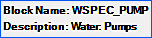
The top of the Attributor dialog contains information pertaining to the Block Name and Description of the block. When working with blocks it is important to have the name of the block present to avoid confusion and reduce the possibility for errors by editing incorrect blocks.
Block Name: The technical block name from a code perspective e.g. WSPEC_PUMP.
Description: A formal descriptive/user-friendly name of the block e.g. Water Pumps.
For more details on specifying block name and description information, navigate to Attributor Configuration page, and navigate to the "Defining the OSBLOCK_DEF.txt file" sub-heading.
The dialog box is re-sizable and also comprises of scrollbars to cater for the optimum customization to suit a desired space on the user's screen.
Section 2: Display (Top-Left of dialog)
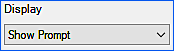
This drop-down display setting references the [TAG_DISPLAY_STATUS] variable within the OSBLOCK_DEF.txt configuration file, and allows for the following customization:
-
Show Prompt: If the value of 0 is entered then only the Prompt will be displayed within the user interface.
-
Show Tag: If the value of 1 is entered then only the Tag will be displayed within the user interface.
-
Show Prompt and Tag: If the value of 2 is entered then both the Prompt and Tag will be displayed within the user interface.
Section 3: Display (Top-Right of dialog)
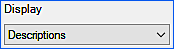
This drop-down display setting references the [FORMAT_VALUE_STATUS] variable within the OSBLOCK_DEF.txt configuration file, and allows for the following customization:
-
Codes: If the value of 0 is entered then only the Code will be displayed within the user interface.
-
Descriptions: If the value of 1 is entered then only the Description will be displayed within the user interface.
-
Codes and Descriptions: If the value of 2 is entered then only both the Code and Description will be displayed within the user interface.
Section 4: Attribute Block Information
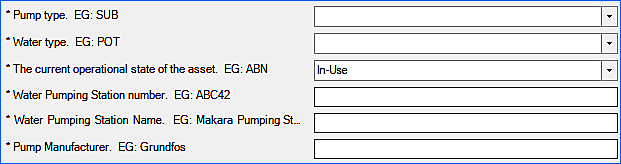
This section requires input into the user interface dialog, which is a composition of both free text and drop-down (with pre-defined criteria) and is specific to the block being defined. The drop-down options are defined within the OSATTR_DOMAIN text file. For a comprehensive explanation on defining lookup values navigate to the Attributor Configuration page and navigate to the "Defining the OSATTR_DOMAIN.txt file" sub-heading.
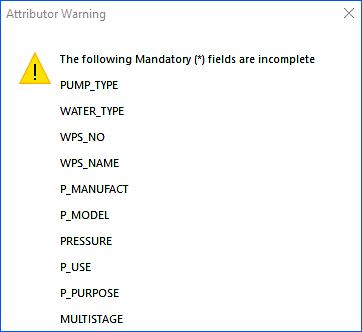
Mandatory fields are denoted by an asterisk (*) at the start of the block attribute field, and clearly indicates that the user should ensure the relevant entry has a value assigned. If all mandatory fields are not completed, and the user clicks on OK to exit the dialog, then the system will return a warning indicating a list of mandatory fields which are incomplete. In addition to the error message mandatory fields will be highlighted in red signifying that input is required before proceeding.
Section 5: Data Standard and Validation Set Version

Data Standard: The Data Standard used within the organization on which the blocks are configured and adhering to.
Validation Set Version: A validation set version of the above-mentioned standard.
More Information: An Open Spatial hyper link which when clicked navigates the user to the Open Spatial contact form where any queries can be asked.
Zoom to entity: When this function is ticked on, the system zooms to the recently placed block.
By clicking on the Help button displayed at the bottom-right-hand corner of the dialog, the user will be navigated to the Open Spatial documentation site.
Multi-Select
This function enables the user to select multiple attribute blocks for editing which belong to the same block type. This is achieved through clicking on the previous/next button displayed on the dialog when multiple blocks of the same block type are selected. Alternatively the user also has the option to select all blocks of the same block type simultaneously by clicking the checkbox next to the Edit Multiple Blocks Simultaneously function. Amidst this process, whilst the user is in the process of editing attribute blocks, the user can zoom to each attribute block by turning on the Zoom to entity function.
To select multiple attribute blocks belonging to the same block type:
1. Select multiple attribute blocks by making a selection.
If multiple different attribute block types are selected then the user will be prompted with the following dialog box.
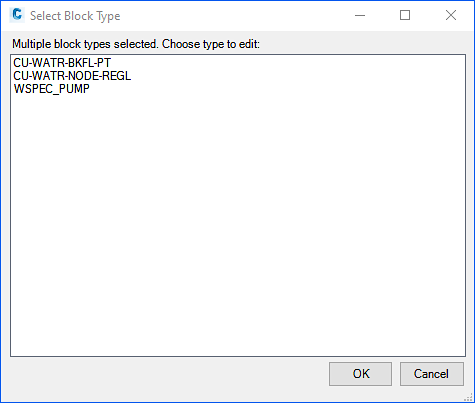
2. Select the relevant attribute block type and then click on OK.

3. The Attributor dialog box will be open and the user can then edit the necessary attributes of block selected.
When this dialog is selected the user is provided with two functions which vary significantly from selecting a single block. These two functions are:
3.1 - Zoom to entity via previous/next direction arrows: This function allows the user to navigate to the previous/next block belonging to the block type selected in the previous step.
3.2 - Edit Multiple Blocks Simultaneously: Ability to select and edit all blocks of the same block type simultaneously.
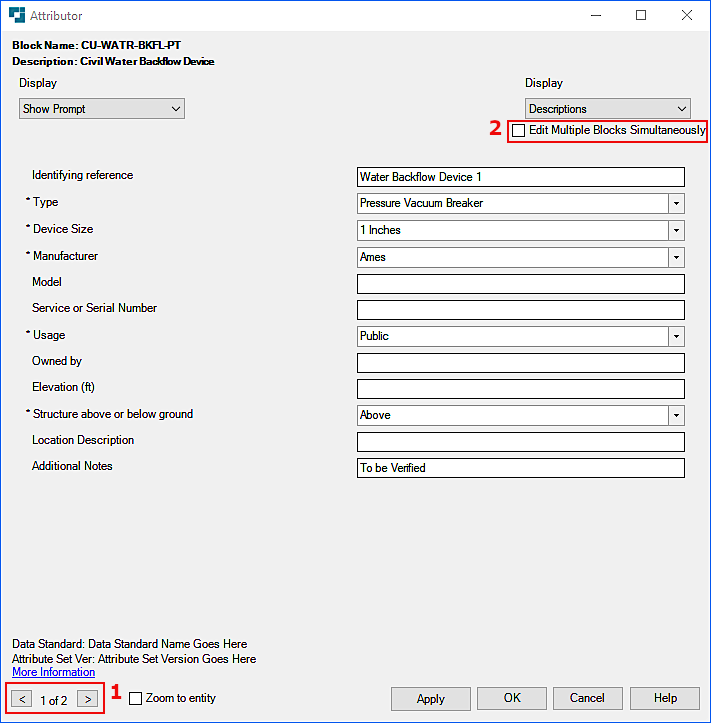
4. If the "Edit Multiple Blocks Simultaneously" function is clicked then the user will notice two things happen.
4.1 Firstly the attribute fields which are free-text will be changed to *VARIES*. When the user specifies changes of each of these values then all corresponding attribute blocks will be edited simultaneously.
4.2 Secondly the block selector at the bottom of the edit block attributes dialog becomes greyed out. This is due to the users preference to edit multiple blocks simultaneously as opposed to re-defining values individually.
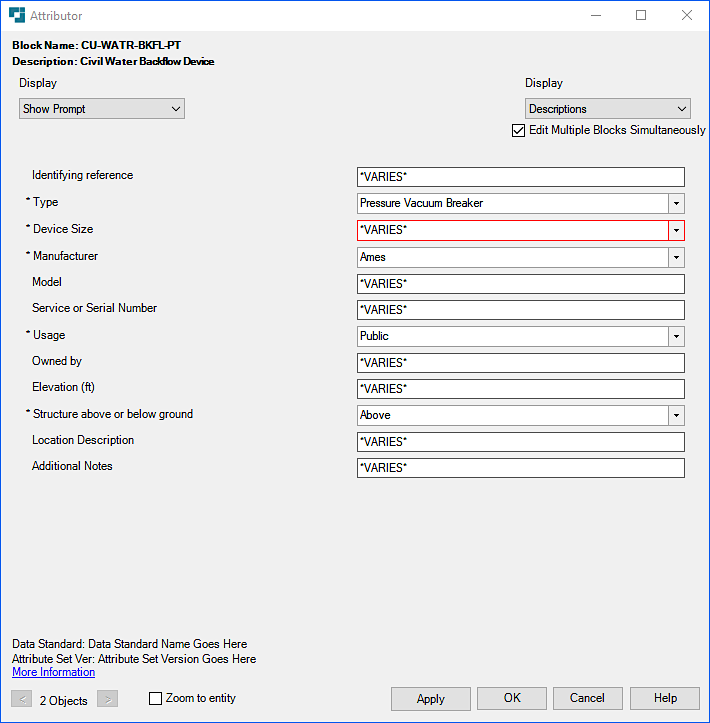
An Apply button is also added to this dialog when multiple blocks of a given block type are selcted for editing.
This button is displayed when multiple blocks are selected for editing. Once the user is done with all edits within the dialog then the user is required to click on Apply.
This then saves all changes or each of the blocks which have been edited.
When mandatory fields have not been filled in, the mandatory fields warning message will be displayed prompting the user to fill in the mandatory fields.