Frequently Asked Questions
No, the free version of Attributor is available to anyone who downloads it from the Autodesk App store.
Can you customize the block attribute information?Can you customize the block attribute information?
Yes, Attributor supports the user of plain text files for the configuration files. These can be edited and enhanced by users as desired. The format of the 2 files is described in the help files provided by Open Spatial.
An asterisk is added by Attributor to the block tag value if that tag is flagged as mandatory in the Attributor configuration files.
This information is stored in the OSBLOCK_DEF.txt file and is a useful way displaying what is being used. If you have multiple configurations it is best to keep the config files in the same folder as the referenced block. You can easily change Data Standard by changing the AutoCAD search path such that the folder with the desired configuration files (Data Standard) are located first in the search path. Each time an Attibutor command is executed the seaerch path is used to locate the configuration files.
The prompts on the left are from the attributes of the block. You can change these using standard AutoCAD commands for manipulation blocks (like BEDIT, BATTMAN, ATTDEF for example).
Yes, Open Spatial has pre-defined configurations available "off-the-shelf" and can easily customize these and/or create custom configurations to match customer CAD standards and GIS schemas. Open Spatial has a comprehensive configuration available using National CAD Standard based layer names and abbreviations and data schemas for the following disciplines - water, sewer, storm, landscape, civil, survey, natural gas, fuel, electricity and telecom.
If the command OSATTEDIT and OSBLOCKINSERT is listed in your command line, but when you run either one of them you get the message "Unknown Command". This is a known and common issue with your Windows user permissions setup. In this case it is a permissions issue for your user and AutoCAD viewing the location as a remote source.
The detailed error messagee will read something like that shown below. A search on the internet will provide options to correct this. The steps that follow below will help you with a fix in the specific case of AutoCAD.
The detailed error message can be found below:
Cannot load assembly. Error details: System.IO.FileLoadException: Could not load file or assembly 'file:///C:\Program Files\Autodesk\AutoCAD 2021 – English\ADNPlugin-QRCodes.dll' or one of its dependencies. Operation is not supported. (Exception from HRESULT: 0x80131515) File name: 'file:/// C:\Program Files\Autodesk\AutoCAD 2021 – English\ADNPlugin-QRCodes.dll ' ---> System.NotSupportedException: An attempt was made to load an assembly from a network location which would have caused the assembly to be sandboxed in previous versions of the .NET Framework. This release of the .NET Framework does not enable CAS policy by default, so this load may be dangerous. If this load is not intended to sandbox the assembly, please enable the loadFromRemoteSources switch.
Example fix:
1. Close AutoCAD if it is open.
2. Locate the autocad.exe.config file. Typically found by default at C:\Program Files\Autodesk\AutoCAD2021.
3. Open it in a text editor and add the following entry within the runtime block, as shown in the screenshot below
<loadFromRemoteSources enabled="true"/>
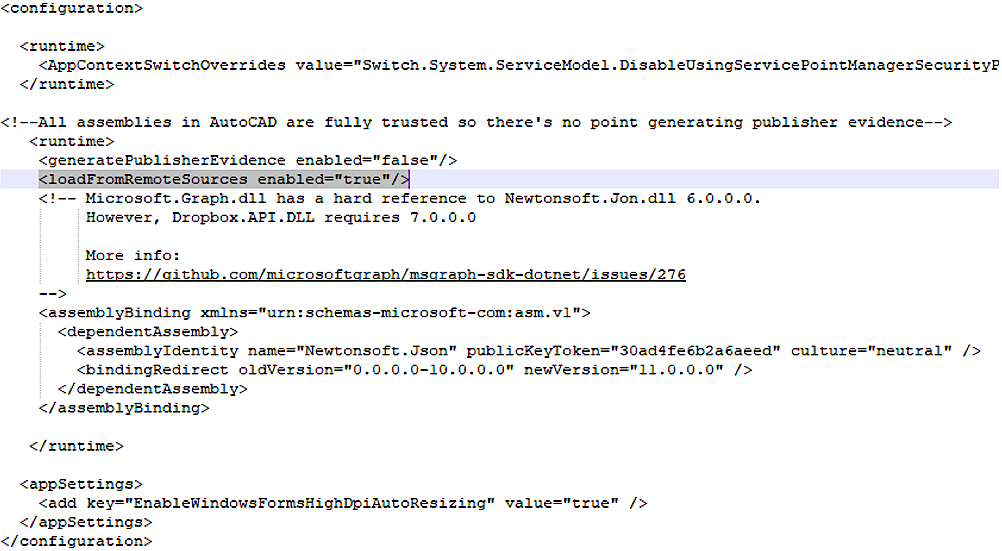
4. Save the file.
5. Restart AutoCAD.